GitHub Copilot with VS Code, Here we go!
Or: how I stopped worrying and learned to love AI

I’ve finally gotten around to dunking my VS Code text editor into the AI bath of GitHub Copilot.
I’ve heard a lot about how good it is with predictive text, but I’ve been reluctant — I’m already overwhelmed with the predictive text in VS Code. I often find it to be an annoying fly that I’m constantly swatting away. Plus, I’ve been using other LLMs for coding help that are working great.
But after a week or so of tinkering, I find myself giving that tired cliché: “Oh, it’s so much more than that!”
Copilot’s ability to reference your entire workspace — all the files and folders within it — already has me feeling like I’ve crossed a line that would be painful to return from. And when I directly ask it to code something for me, it darn-well does it pretty well, even if it’s a bit finicky for me at this point in my learning curve.
So let’s build something silly as we explore a bit. 🗺️
Here are the live and code links if you wanna jump ahead to the final product:
Random Number ✨ Live Link & 😸 Github Code:
Tic-Tac-Toe ✨ Live Link & 😸 Github Code:
Getting Started
Downloading and setting up VS Code and GitHub Copilot is pretty straightforward. Here’s the guide for that 👉 “Setup Tutorial”.
🚨 NOTE: Yes, you have to pay GitHub for this service 💸. But you can do a trial run. Since I already pay for GitHub Pro, this was an easy add-on for me.
So far, these are the three areas I’ve explored while messing around with Github Copilot with VS Code…
Predictive Text: Dynamic references to code already written.
Inline Prompts: Use commented-out code to ask questions.
Chat Box Prompts: Create a ton of code from scratch, or reference your current workspace.
However, I’m only going to focus on using the Chat Box here because that’s what I’ve experimented with the most and find the most useful. I’m still unsure how to best utilize predictive text and might do another post about that soon (I do find it promising).
Out of the Box
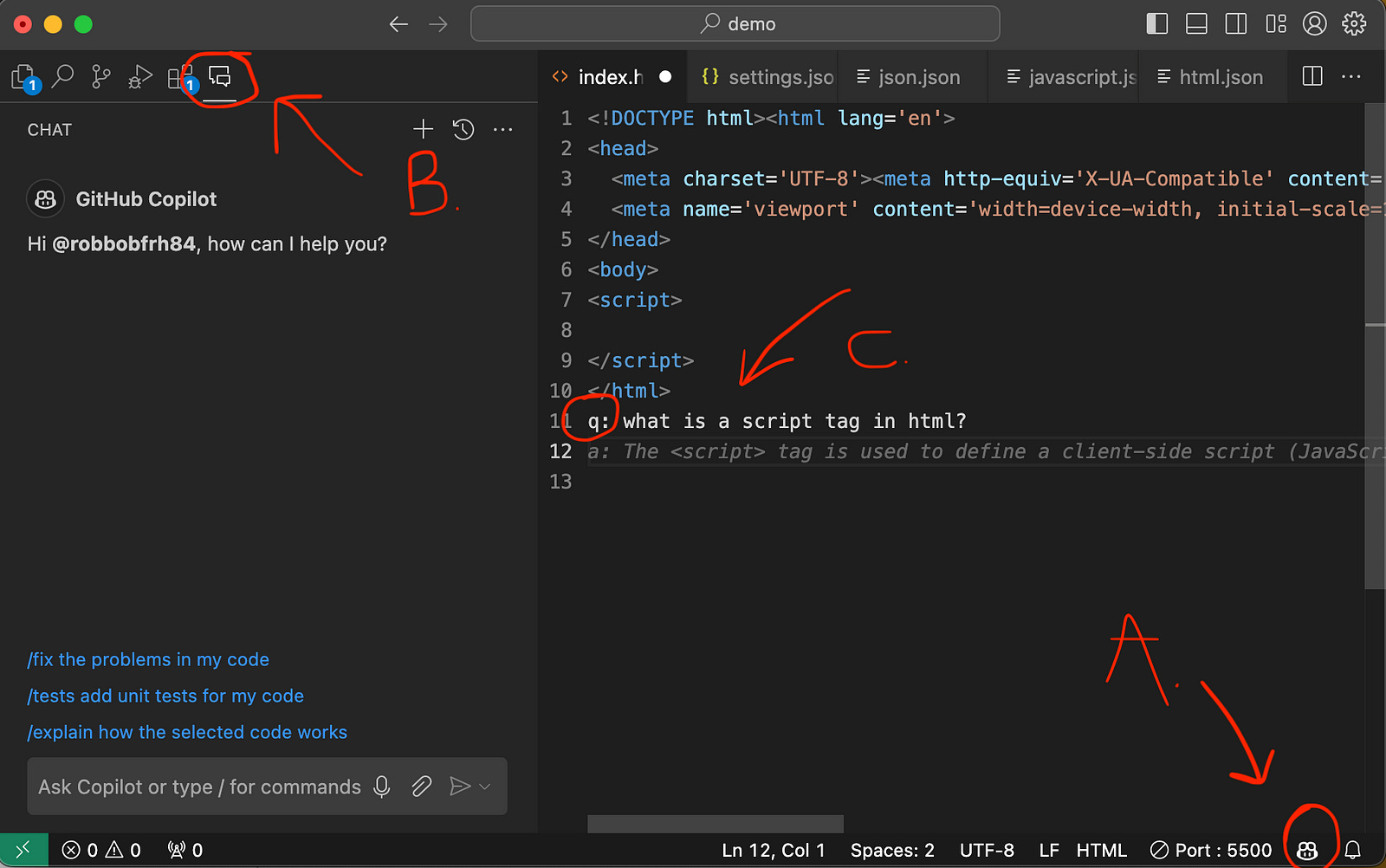
Alright, so once it’s all set up, here are the basics to interact with and pay attention to:
A: The little Copilot icon, where you can adjust settings, turn it off/on, etc. Note that it will sometimes be a spinning wheel when it’s “thinking” and will let you know when it’s not connected. You will need an internet connection to use this.
B: This is the Copilot chat icon that opens the chat box. 🔥 But, with the ability to reference your code. This is where we will focus our attention in this post.
C: Finally, the text editor, where you can interact with GPT directly. Prefix any code file with
q:to ask a question, and on the next line, typea:to see an answer generated.
The Github Copilot Chat Box
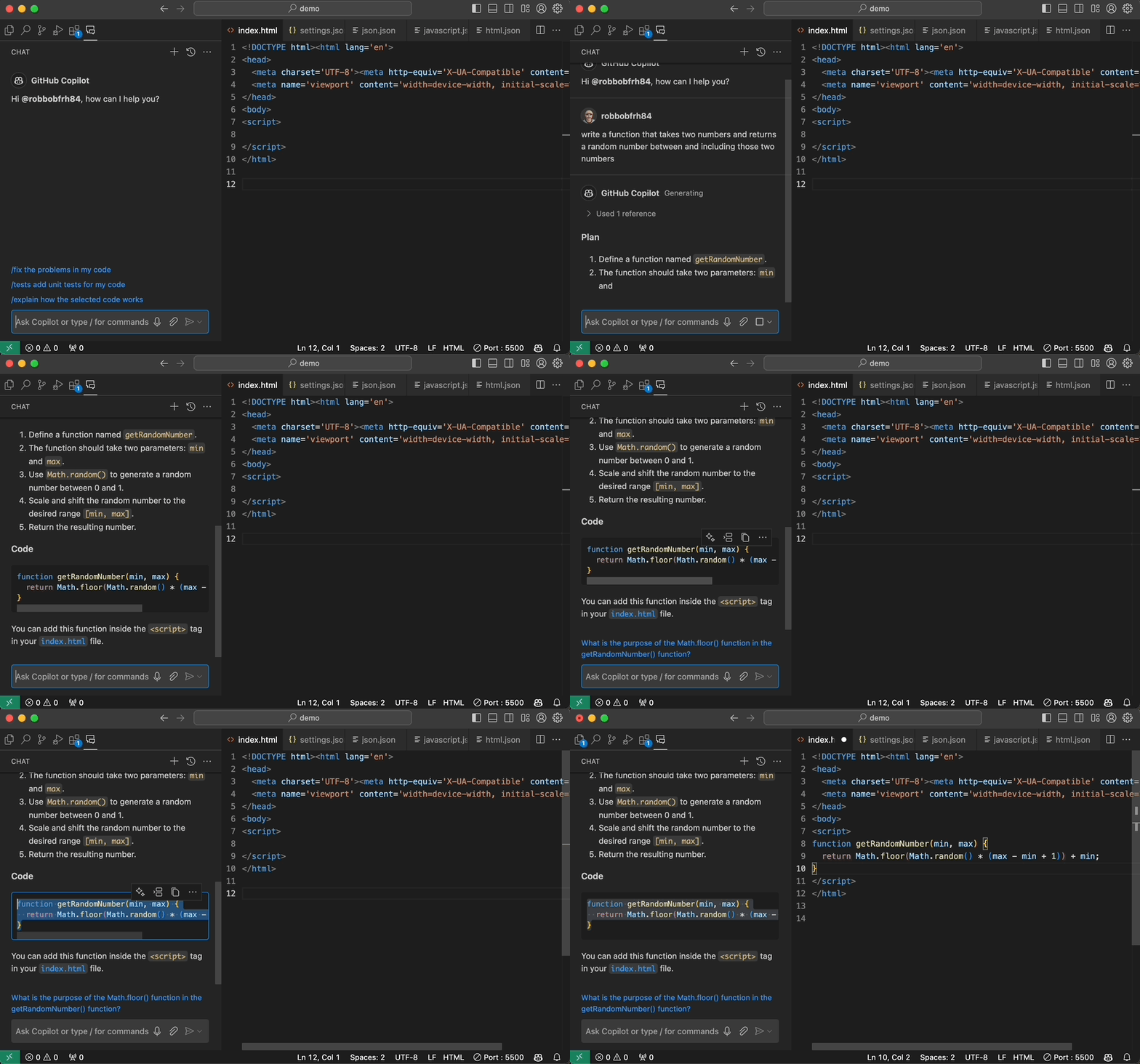
n the .gif above, I wrote the following prompt:
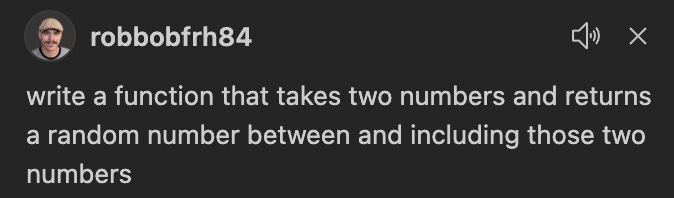
Aaannnd… ✅ Great! I copied and pasted the code, and the function behaves as expected.
Pair-Programming with Copilot
Ok, let’s stretch this thing’s legs out a bit! I now want to reference our code to add more to our project, specifically to give it a UI that we can interact with in the browser.

After the prompt returns, you need to take two steps to update your code with the Copilot suggestion:
Find and click the “Apply in Editor” sparkle icon ✨ above the suggested code.
Review the code and select “Accept Changes” within the code editor.

🧪 Now let’s open the index.html file in the browser and test our results…

Multi-file Updates with `@workspace
Naturally, you’ll want to make updates to your code that include changes to multiple files in your project’s codebase. This can be achieved by starting a chat with Copilot using the prompt prefix @workspace. So, let's test this by creating a main.css file with some code that we want Copilot to reference and change.
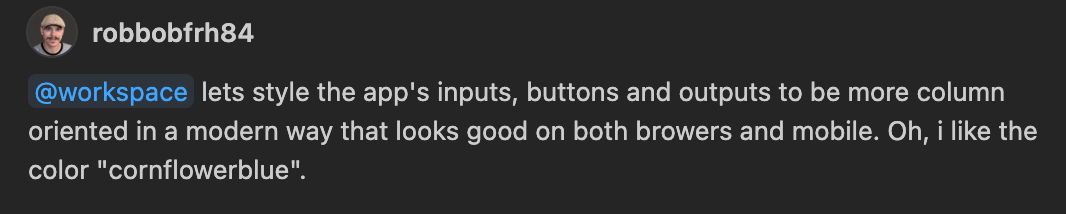
For the sake of this example, you can see I’m being a little more informal and conversational, just to test how well it works.

NOTE: The chat response will show the files it references while creating the response prompt.
Updating multiple files from the chat requires a bit of “jumping around,” and it can be easy to mess up. The workflow goes like this:
Clicking the filename in the chat will open that file.
Then, select the “Apply in Editor” sparkle icon ✨.
Select “Accept Changes.”
Go back to the chat window, select the next file to update, and repeat these steps until all files are updated.
It can be easy to mess up if you click the ✨ icon to update your code while the wrong file is open; it will try to add it to the wrong file. (I suspect this might be something that gets fixed soon, though.)
At first, I was disappointed and hoped that it would have just updated them all at once. However, once I went through the process, I realized it’s probably really good that I’m forced to review the changes by going through it file by file. Which, I should absolutely be, at least, doing.
…So, how’d it turn out after the changes?
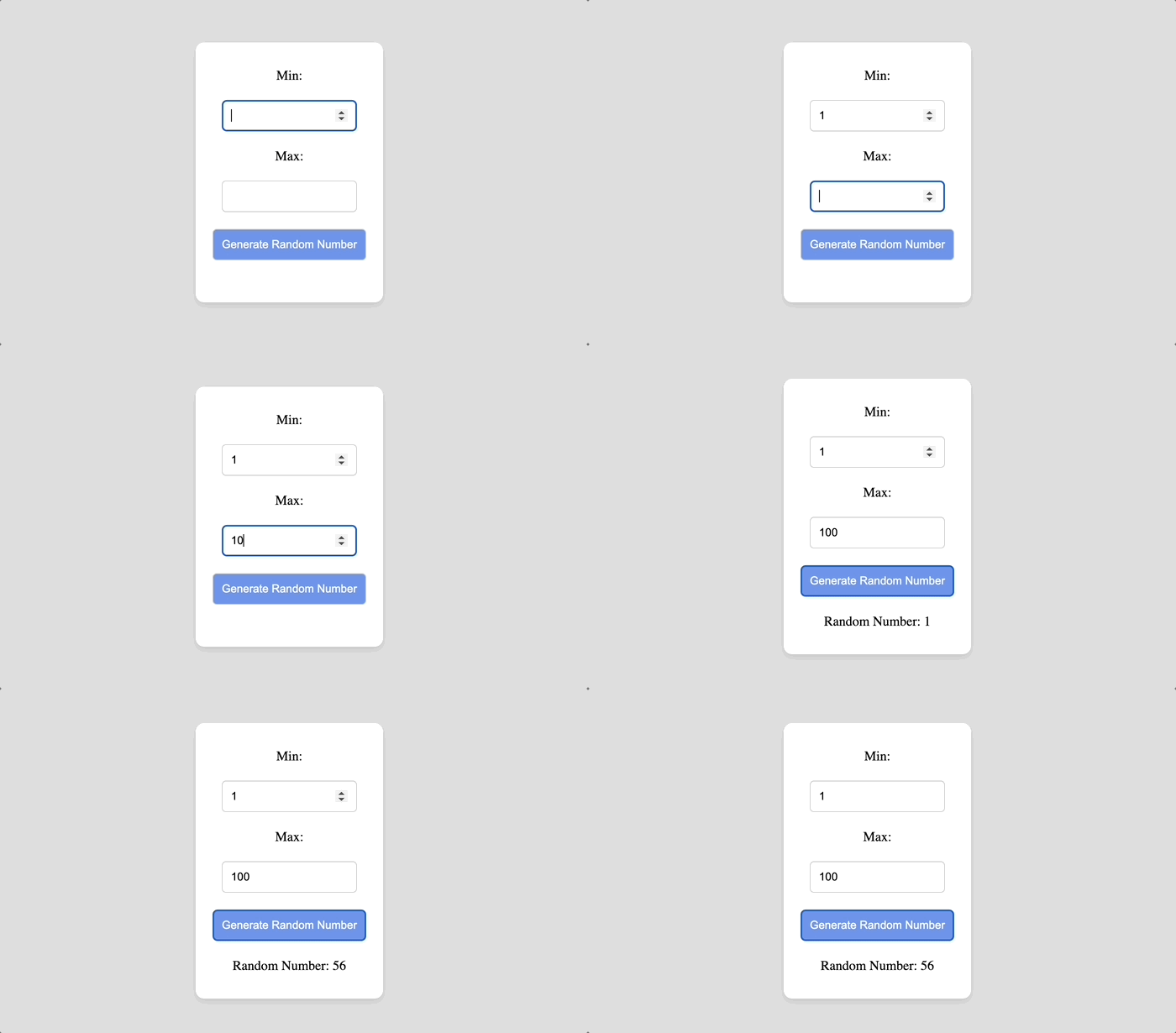
Links! ✨ Live Link & 😸 Github Code:
Hey now! That looks pretty good! And it even took my “unrelated” mention about a color I like and applied that color to the styling. I feel so heard 🥹!
I won’t go into detail, but I did some fine-tune styling using prompts as well.
🤔 Sometimes, I wonder if it would just be quicker to do it myself and if it would make me more familiar with the code. But this exploration is for Copilot, not real-world development… yet.
Dealing with VS Code “Freezing” on Save
There have been a few times when I tried to update a file and noticed the “unsaved changes” dot above the file wouldn’t go away after attempting to save. This seems to be due to the fact that the requested changes weren’t “Accepted” or “Discarded.”
Unfortunately, the only way I’ve figured out how to fix this is by rebooting VS Code.
💅 So be careful to either Accept or Discard changes when selecting the “Apply in Editor” sparkle icon ✨.
Just Do It for Me: New Project Creator
So here is where Copilot can really flex 💪. By using the prompt prefix @workspace /new, we can give a brief description of what we want the application to do. It may take a couple of rewrites to get it to deliver what you're looking for.
What should we make? Uh… how about tic-tac-toe! And we’ll try and see if we can create some AI logic for us to play against.
Here’s how that prompt/response looks. You then select “Create Workspace” and watch Copilot work.
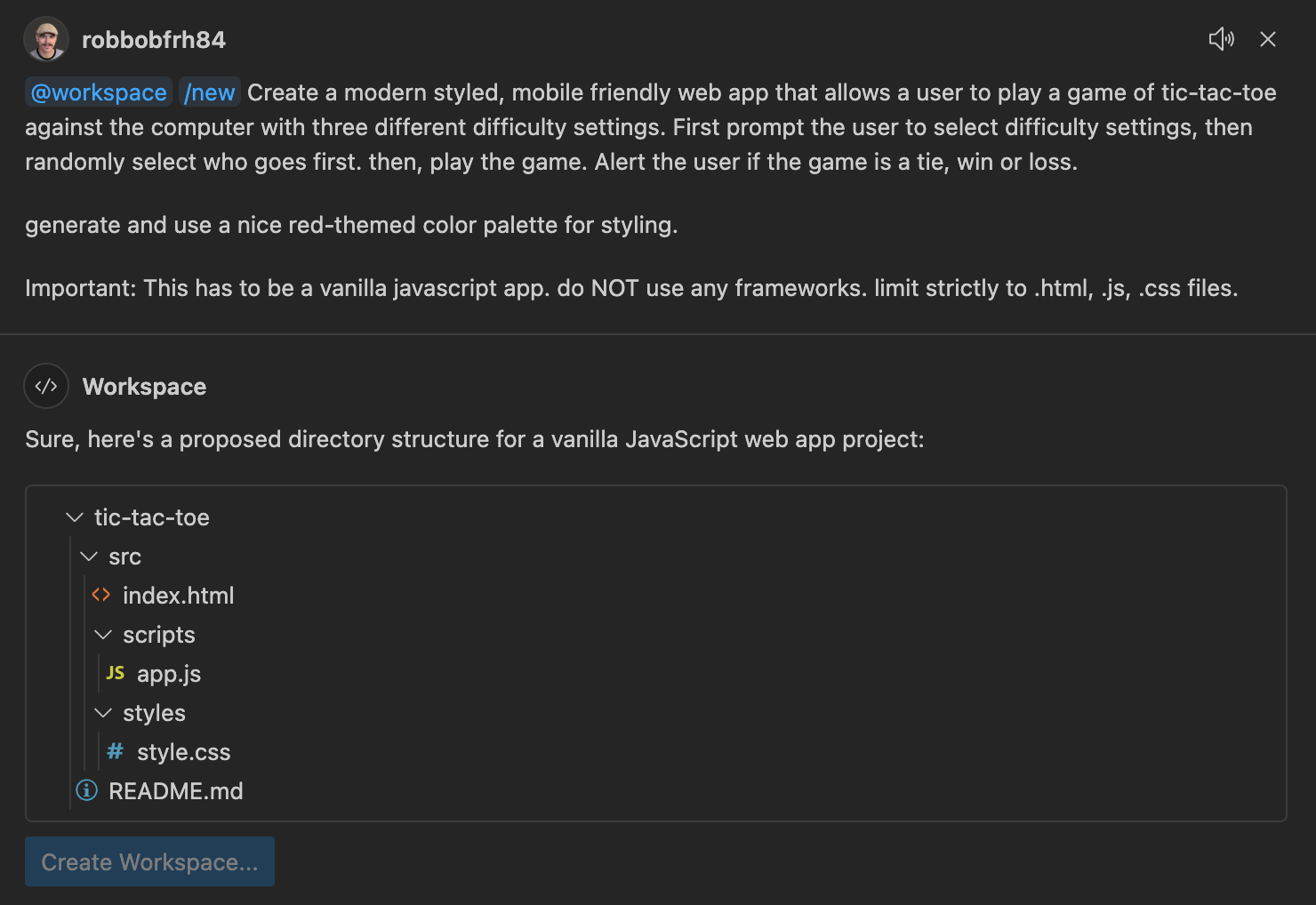
This returned mostly a framework with empty functions to fill out myself. But you can explicitly ask it to do that work for you. So begins a back-and-forth pair programming session until you get the desired results.
For this exercise, I wanted to see how much Copilot would code the app. So, here’s the transcript of my prompts that led to the completed app.
@workspace create the playGame function
@workspace clicking on a square dosen’t show anything
@workspace ok, so when the user goes, we get a ‘x’ in the box. good. BUT, the computer isn’t taking it’s move. Can we implement that and update the box with the computer’s ‘o’ move?
@workspace ok, let’s keep the game logic all in the app.js for now. so rebuild this last suggested response
@workspace update the code so that the selected difficulty is highlighted.
I did hit a couple of dead ends and just updated the code myself, but it was mostly Copilot. Here’s the final game in action.
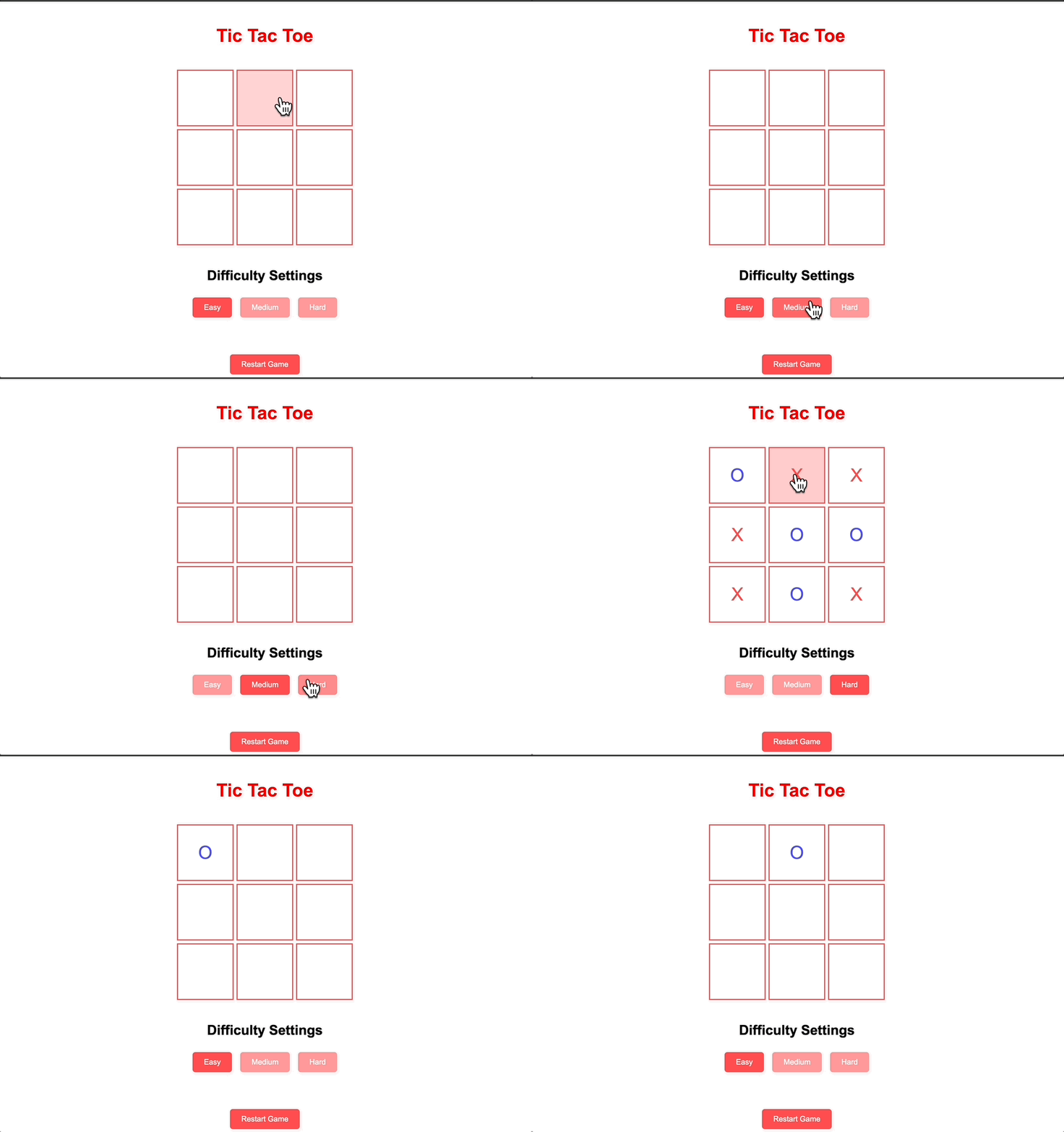
Links! Tic-Tac-Toe ✨ Live Link & 😸 Github Code:
How I’m Feeling Going Forward with Copilot?
Well… to start, it’s hard to imagine going back. However, to really get it to work for you, you’ll need to have a strong grasp of what the code is doing to properly build usable code from additional prompts. I’m learning that there are points when it’s just best to code it out yourself, as getting it to do exactly what you want would take more time.
Additionally, using the “Apply in Editor” sparkle icon ✨ seems to have a limit and starts to double-paste or incorrectly paste if you’re not paying close attention. So, good ol’ copy/paste might be a better option.
I imagine it’s just going to take more time messing around with it and adapting to the updates to really get in sync with it.
In the meantime, it’s a ton of fun and absolutely worth integrating into my workflow.
Thanks for the read! Please feel free to share your experiences with Copilot or to ask any questions about what I’ve shared!
Cheers 🍻,
Bob
